> ## Documentation Index
> Fetch the complete documentation index at: https://docs.topsort.com/llms.txt
> Use this file to discover all available pages before exploring further.

# Vendor Creation

export const LastUpdated = ({date, lang = "en"}) => {
  const translations = {
    en: "Last updated:",
    es: "Última actualización:",
    pt: "Última atualização:",
    fr: "Dernière mise à jour:",
    de: "Zuletzt aktualisiert:"
  };
  const label = translations[lang] || translations.en;
  return <>
<style>{`
.last-updated-component {
display: inline-flex;
align-items: center;
gap: 8px;
padding: 10px 16px;
border-radius: 8px;
margin-top: 12px;
margin-bottom: 16px;
font-size: 14px;
background-color: rgba(0, 0, 0, 0.05);
border: 1px solid rgba(0, 0, 0, 0.12);
color: rgba(0, 0, 0, 0.75);
line-height: 1;
}

        .last-updated-component svg {
          flex-shrink: 0;
          vertical-align: middle;
        }

        .last-updated-component span {
          display: inline-flex !important;
          align-items: center !important;
          line-height: 1 !important;
        }

        [data-theme="dark"] .last-updated-component {
          background-color: #3a3a3a;
          border: 2px solid #888888;
          color: #ffffff;
        }

        [data-theme="dark"] .last-updated-component svg {
          stroke: #ffffff;
        }
      `}</style>
      <div className="last-updated-component">
        <svg width="16" height="16" viewBox="0 0 24 24" fill="none" stroke="currentColor" strokeWidth="2" strokeLinecap="round" strokeLinejoin="round">
          <circle cx="12" cy="12" r="10" />
          <polyline points="12 6 12 12 16 14" />
        </svg>
        <span>
          <strong style={{
    fontWeight: 600
  }}>{label}</strong> 
          <time dateTime={date}>{date}</time>
        </span>
      </div>
    </>;
};

<div style={{ textAlign: "justify", marginBottom: "1.5rem" }}>
  At Topsort, the vendor is your advertiser. If you operate a marketplace, this
  means the vendor is the entity selling products on your platform. Vendors are
  linked to your product catalog, and you can grant members access to their
  analytics or self-service features. New vendors are automatically created when
  you sync your catalog with Topsort.
</div>

<div style={{ textAlign: "justify", marginBottom: "1.5rem" }}>
  Topsort also allows the creation of vendors using the user interface,
  providing full parity with our existing [Catalog
  API](/en/ad-server/catalog/). This feature addresses
  customer requests for a simpler way to create first-party vendors, enabling
  them to run campaigns and test the platform faster.
</div>

## How It Works

<div style={{ textAlign: "justify", marginBottom: "1.5rem" }}>
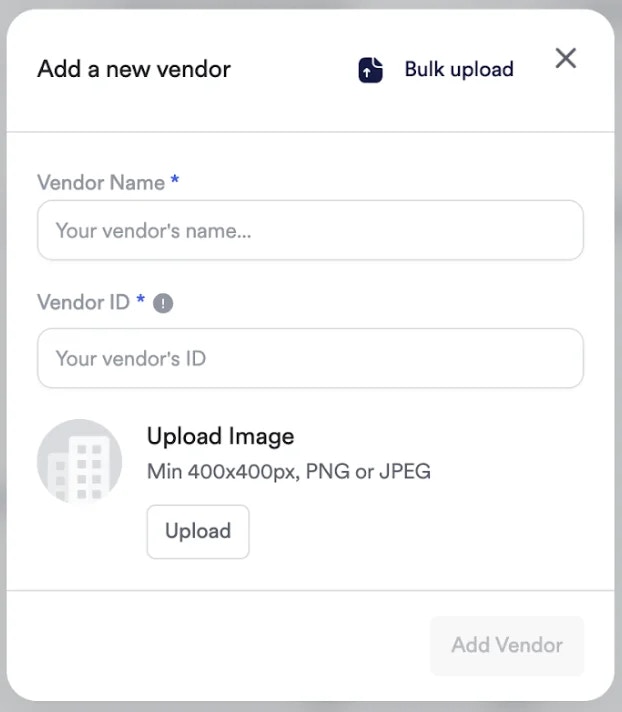
  There is a simple form to create and bulk upload vendors. Every vendor has a
  **name**, an **ID**, and an **optional picture**.
</div>

<Warning>Once a vendor is created, its ID cannot be changed.</Warning>

<Frame>
  <img src="https://mintcdn.com/topsort/JfdWUceY7Se3NW-0/images/knowledge-base/add_new_vendor.webp?fit=max&auto=format&n=JfdWUceY7Se3NW-0&q=85&s=fbeee0d90a8221dc6ead8076d57f0120" alt="adding vendor" width="622" height="712" data-path="images/knowledge-base/add_new_vendor.webp" />
</Frame>

{" "}

## Bulk Upload

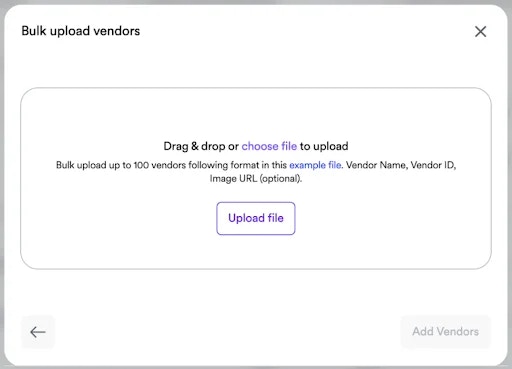
A bulk upload tool is available, allowing up to 100 vendors to be created at once. If needed, a sample file can be downloaded.
<Frame>
  <img src="https://mintcdn.com/topsort/JfdWUceY7Se3NW-0/images/knowledge-base/add_new_vendor_bulk.webp?fit=max&auto=format&n=JfdWUceY7Se3NW-0&q=85&s=56a1c0f70722bddbd0a6b283023970f8" alt="adding vendor bulk" width="512" height="369" data-path="images/knowledge-base/add_new_vendor_bulk.webp" />
</Frame>

{" "}

To assign products from the catalog to a vendor, refer to our [**Ad Server - Catalog**](/en/ad-server/catalog/) documentation.

***

<LastUpdated date="2025-11-18" />