

Marketplaces use native ads that consist not just of images, but also multiple
text fields, background images, foreground images, and other customizable
elements. These elements can vary across different placements, making it
challenging to maintain consistency and streamline ad creation across
campaigns.
Creative templates provide a solution by offering pre-designed banners that
enable teams to quickly build ads following a structured, repeatable
framework. These templates are highly customizable and can include specific
fields. Whether you need fields for a button, images, headlines, custom
parameters, or other design elements, templates allow you to standardize and
simplify the process.

How It Works
Creating a New Template
Retailers can create custom templates tailored to their needs. These templates
can be configured with various fields, such as text, images, external links,
and other elements, to meet the specific requirements of the placement. Here’s
how you can create and configure a new template:
1
When creating a template, first define the static preview image and the fields that will make up the template. For each field, you'll need to specify:
- Field Type: Choose from text, image, select, button, link, etc.
- Variable: The variable name that the field is going to use.
- Field Name: Define a clear label for the field to identify it in the campaign creation process.
- Description: Provide an explanation or instructions about what should be entered into the field.
- Required or Optional: Decide if the field is mandatory for advertisers to complete, or if it can be left blank.
- MinLength: min number of chars for text fields
- MaxLength: max number of chars for text fields
- Default: default value for the field
- Prefix: for fields of type link, they will start with the prefix
- MultiSelect: for fields of type select if the user should select one or multiple
- Options (querystring): keys and values for fields of type select
This can be done using a CSV or the UI
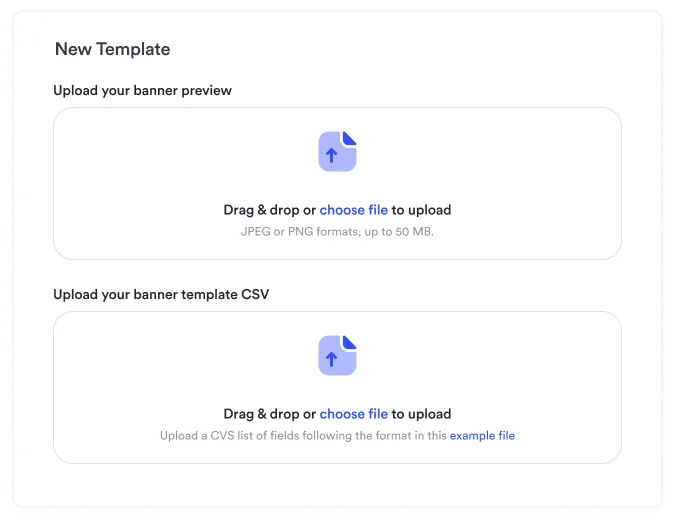
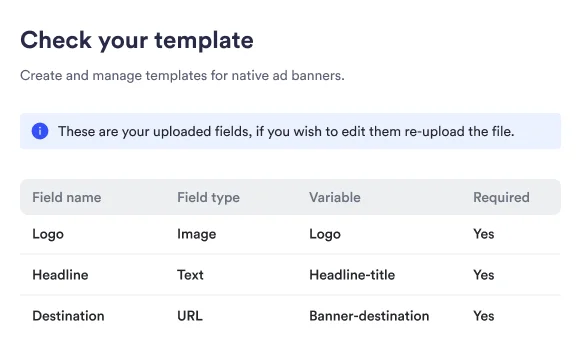
2
Then, give it a unique name, a brief description to help advertisers understand its intended purpose, and optionally add a dynamic preview URL.
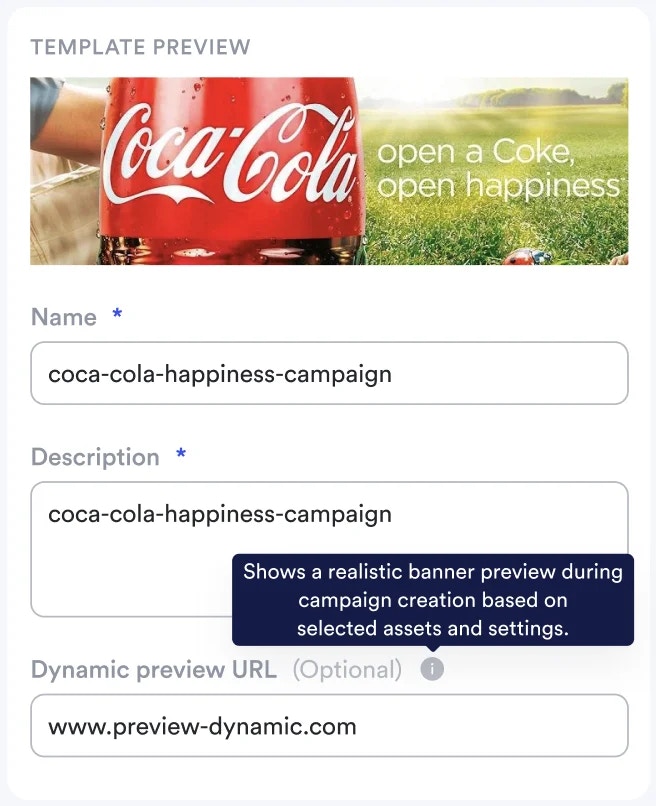
Dynamic Preview Configuration
Dynamic preview URLs allow real-time visualization of how template fields will
appear in the actual ad placement. The preview system loads your specified URL
in an iframe and dynamically populates template variables with campaign data.
1
Prepare Your Preview Environment
Before configuring dynamic preview in the template, ensure you have a preview URL available that can render the template structure. This could be on your local development environment or a deployed staging application.
2
Configure Preview URL Pattern
Set up your dynamic preview URL using template variable placeholders. The URL structure should include parameters that correspond to your template fields:
3
Template Variable Integration
The preview system will automatically replace template variables in the URL with actual values as advertisers fill out campaign fields, enabling real-time preview updates.
4
Client-Side Rendering
Your preview URL should include the necessary client-side logic to locate and populate template elements with the provided parameters.
Preview URL Requirements: Your preview URL must be accessible and include
the necessary rendering logic to display template content correctly. The
system uses client-side JavaScript to override content within designated
template elements.
Using Templates
1
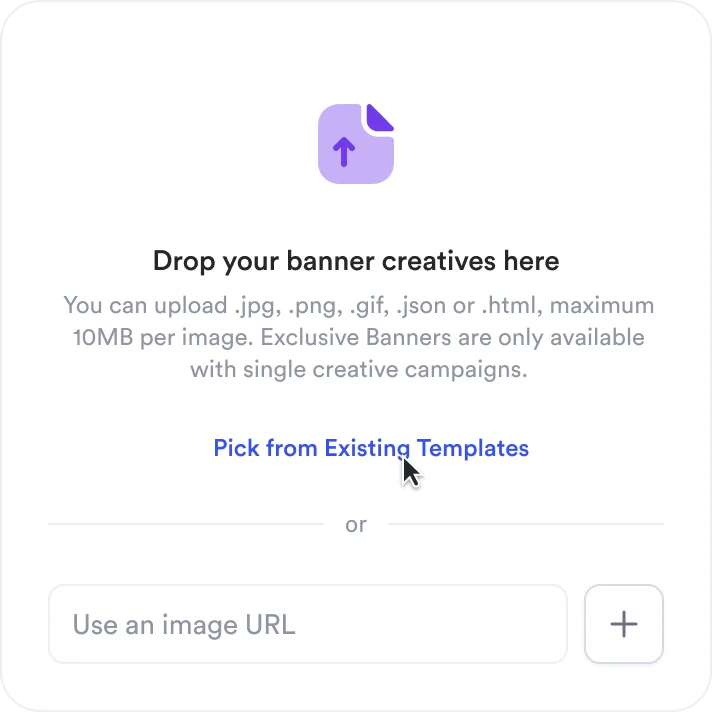
Choose to start from template
2
Select a template from the list
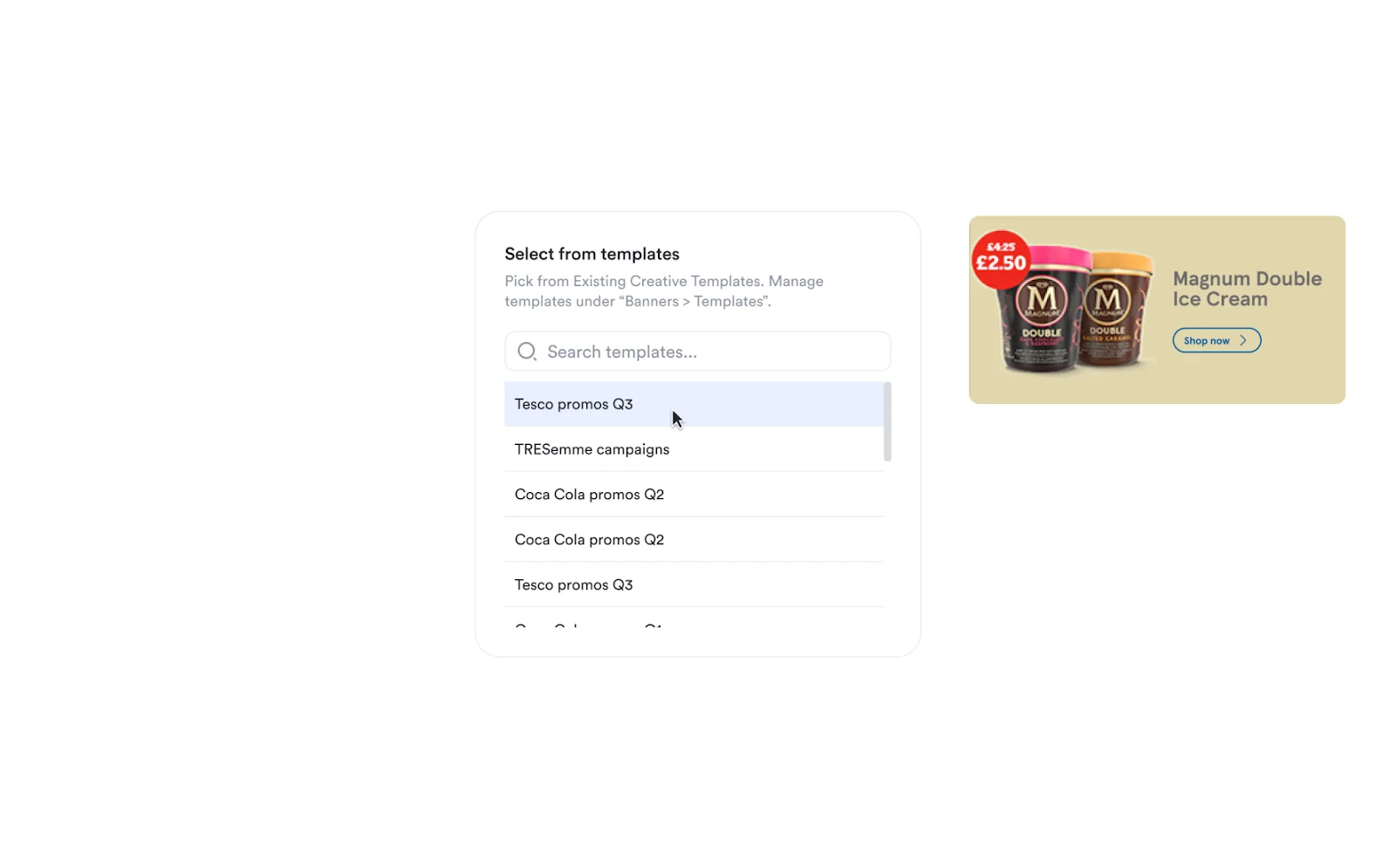
3
Fill the template fields
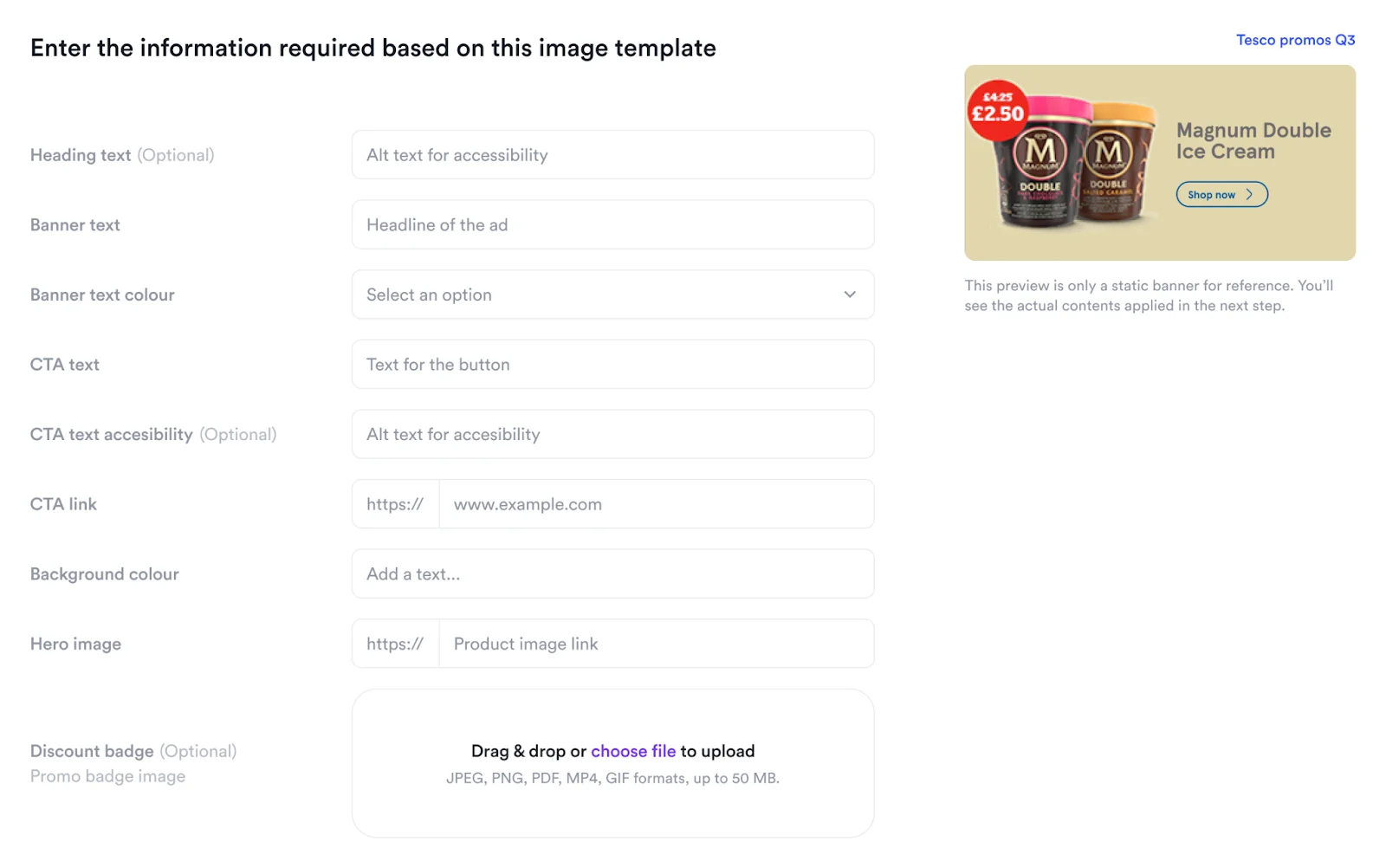
4
Continue with the banner campaign creation flow
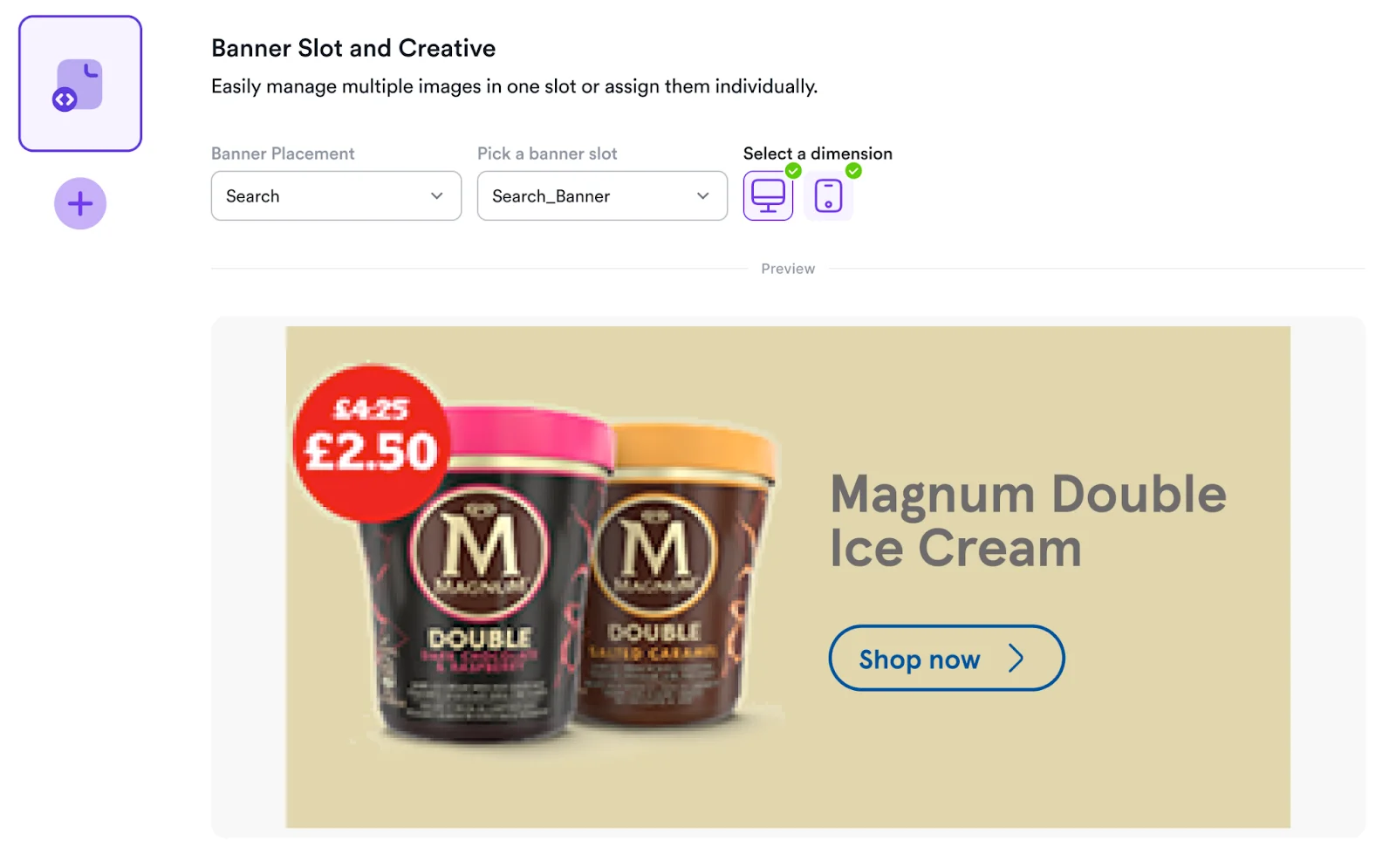
Template Response Structure
Each winner in the auction response includes a
content object containing the
parameters configured during campaign creation:The
content object structure directly corresponds to the template fields
configured during template creation, enabling your frontend to dynamically
render the appropriate creative elements for each placement.Implementation Note: Use the template field variables as keys in your
rendering logic to ensure consistency between campaign configuration and
frontend display across all placements.
Third-party verification
JSON banner templates can carry a third-party verification tag as creative content. Include a text field namedverificationTag when creating the template so advertisers can supply their tag during campaign creation; its value is returned in the winning asset’s content.verificationTag field. The template field itself is provider-agnostic, but the initial @topsort/verification runtime supports only confirmed IAS monitoring tags. A custom renderer must connect the returned tag, exact rendered element, resolvedBidId, and marketplace consent state.
See Third-party verification helper library for setup instructions.