

1
Understand Required Events
Topsort uses three main events, all mapped from Segment’s eCommerce Spec:
- Avoid sending duplicated clicks. If both Product Clicked and Product Added are fired from the same user action, choose only one.
- If you’re using custom events, reach out at support@topsort.com to map them properly.
2
Add the Topsort Destination in Segment
- In Segment, go to Connections > Catalog > Destinations
- Search for Topsort, then click Add Destination
- Select the relevant Source (your site or app)

3
Configure Destination Settings
- In the Topsort Manager Platform, go to Settings > API Integration
- Copy or create your Marketplace API Key
- Back in Segment, open the Topsort destination’s Settings tab and paste your API Key

4
Enable Track Events and Add Metadata
- Only enable the Track events you’re actively sending from your site
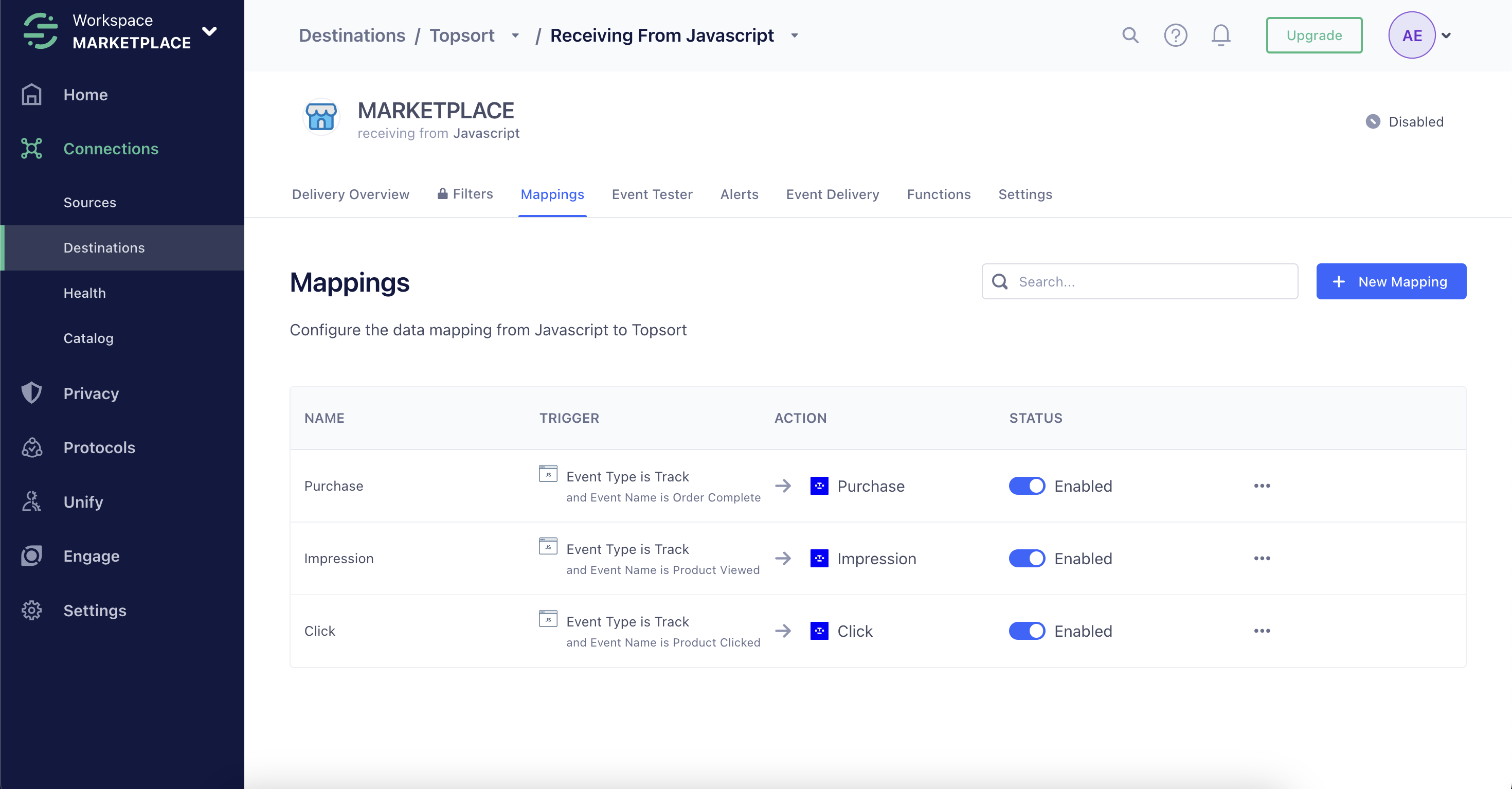
- Add the
resolvedBidIdfield to:
- Product Viewed events
- Product Clicked events
resolvedBidId uniquely identifies the promoted winner of the auction. You can retrieve it from the Auctions API or Proxy response.Example call:5
Identify Users
Topsort recommends identifying logged users with Segment’s identify method. Example:Logged-out users are tracked with an
anonymousId. If using server-side sources, include at least userId or anonymousId. Once a user is identified, each call to Segment’s Track method automatically records the user ID. Users that are not logged in can be tracked using an anonymousId.